
In my last blog about Nifi, I demonstrated a simple dataflow to obtain current weather data from Open Weather Map and write it to a JSON file. Recall the overview of the dataflow shown in the figure below.

In this blog, I will discuss the final three processors in this dataflow that extract information from the JSON file and display it in a simple web page.
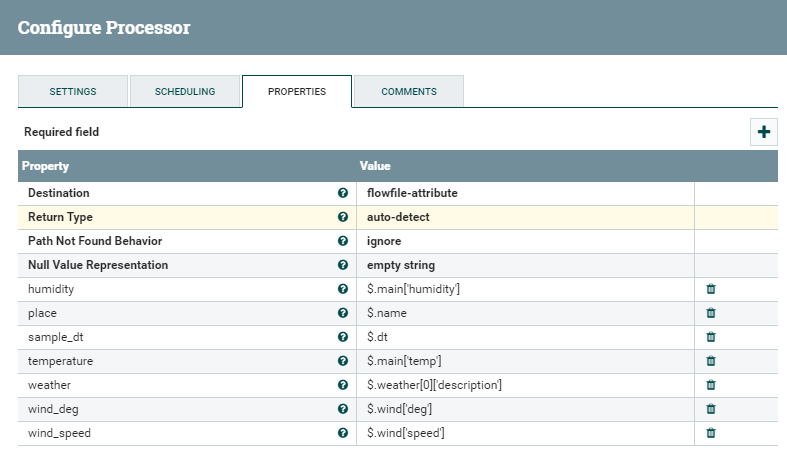
As noted last time, the InvokeHTTP processor has two Response relationships: one connects to the PutFile processor and one to the EvaluateJsonPath processor. The EvaluateJsonPath processor extracts data from the FlowFile (i.e., JSON) received from the InvokeHTTP processor and sets Nifi attributes to be used later in the dataflow. This extraction is achieved using Nifi Expression Language as follows:
- humidity = $.main[‘humidity’]
- place = $.name
- sample_dt = $.dt
- temperature = $.main[‘temp’]
- weather = $.weather[0][‘description’]
- wind_deg = $.wind[‘deg’]
- wind_speed = $.wind[‘speed’]
These assignments are also depicted in the figure below. Also note, the Destination attribute has been set to flowfile-attribute.
Review the weather.json file created by the PutFile processor to understand the above assignments more clearly, or to add your own. I found www.jsonquerytool.com to be helpful with creating these assignments.
Assign the EvaluateJsonPath matched relationship to a second instance of UpdateAttribute processor. The failure and unmatched relationships should be set to automatically terminate.
The second UpdateAttribute processor in the dataflow creates one new attribute (see figure):
- sample_dt2= ${sample_dt:append(“000”):format(“yyyy-MM-dd HH:mm:ss”)}
sample_dt2 represents the data and time the weather data was sampled in standard format as opposed to Epoch time. Note the appendage of “000” to sample_dt. This is necessary because Nifi processes Epoch times as milliseconds, as opposed to seconds.

The other contribution this instance of UpdateAttribute makes is found on the Advanced tab of the Properties screen. See the figure below.

The Advanced tab allows you to create rules that can be applied to the FlowFile using Nifi Expression Language. In this example, I created eight rules to convert the direction of the wind extracted in the wind_deg attribute to a compass direction for easier understanding by the end user (me!). The rules are all straightforward and follow the same logic. For example, the WNW rule depicted in the figure above, if the wind_deg is greater than or equal to 270 AND less than 315 then the wind_direction is WNW. Here are all of the rules (note the AND is implied by the control):
- NNW: ${wind_deg}.ge(315)}
- WNW: ${wind_deg}.ge(270)} AND ${wind_deg}.lt(315)}
- WSW: ${wind_deg}.ge(225)} AND ${wind_deg}.lt(270)}
- SSW: ${wind_deg}.ge(180)} AND ${wind_deg}.lt(225)}
- SSE: ${wind_deg}.ge(135)} AND ${wind_deg}.lt(180)}
- ESE: ${wind_deg}.ge(90)} AND ${wind_deg}.lt(135)}
- ENE: ${wind_deg}.ge(45)} AND ${wind_deg}.lt(90)}
- NNE: ${wind_deg}.lt(45)}
I didn’t include rules for the four cardinal directions but it would be simple to do so. Rules can be super powerful and used for much more than this trivial implementation of if-then-else block (see here).
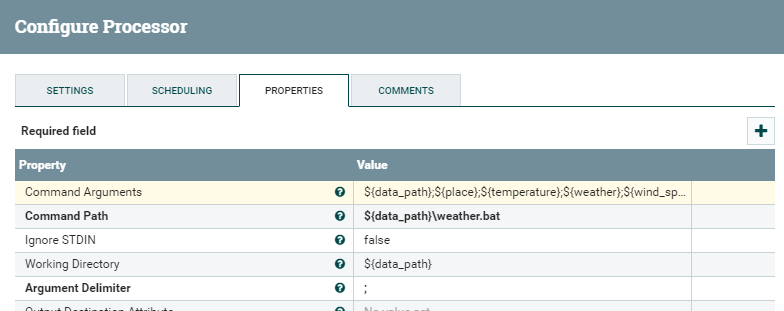
The UpdateAttribute success relationship is connected to an ExecuteStreamCommand processor. The ExecuteStreamCommand processor takes the attributes created by the UpdateAttribute processor and passes them as command line arguments to a Windows batch file which creates and opens the web page displaying the current weather conditions. The ExecuteStreamCommand processor is configured as follows (see figure):
- Command Arguments: ${data_path};${place};${temperature};${weather};${wind_speed};${wind_direction};${humidity};${sample_dt2}
- Command Path: ${data_path}
- Working Directory: ${data_path}
- Argument Delimiter: “;”
All UpdateAttribute relationships are set to automatically terminate.
The non-Nifi magic that makes this last step work is the weather.bat file. This is a simple Windows batch file that echoes the command line inputs to an HTML file and then opens it in a browser. Here are the contents of the weather.bat file:
@echo off
 echo ^<html^>^<head^>^<title^>Nifi Current Weather Example^</title^>^</head^> > %1\weather.html
 echo ^<h1^>Current Weather Conditions^</h1^> >> %1\weather.html
 echo Location: %2 ^<p/^> >> %1\weather.html
 echo Temperature: %3 F^<p/^> >> %1\weather.html
 echo Conditions: %4 ^<p/^> >> %1\weather.html
 echo Wind: %5 MPH from %6^<p/^> >> %1\weather.html
 echo Humidity: %7 %% ^<p/^> >> %1\weather.html
 echo Updated: %8 ^<p/^> >> %1\weather.html
 echo ^</body^>^</html^> >> %1\weather.html
 start %1\weather.html
Note the “^” are necessary to escape the brackets in the batch file. Here are the results:

This has been a relatively trivial example of how to use Nifi, but I hope it was enough to whet your appetite to explore it further and see how it can be utilized to develop real dataflows, migrations, and processes. I hope to revisit this technology in the future with a “real” project.
The GetCurrentWeather template and weather.bat file can be downloaded here.
 Random Eklektos
One thought on “Apache Nifi – Part 2”